done
File attachments are links on wiki pages that provide direct access to uploaded files, such as Word documents, PDFs, and images. File attachments are integrated directly into wiki pages.
Add a file attachment
Add an attachment area to a page to upload new files or select files that already exist in the wiki.
Add an attachment area:
- In VisualEditor, select Content Droplets in the toolbar.
- Search for and select Attachments.
- Select Insert.
- Select Insert again.
- Save the page. The attachment area is displayed on the page.
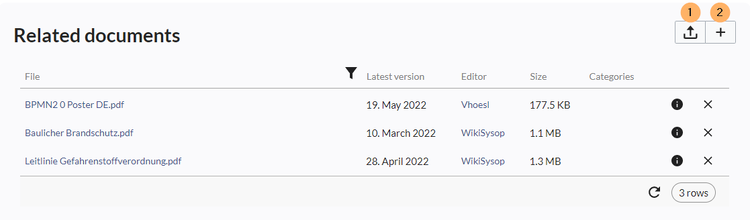
New attachments area - In the attachment area, select Upload a new file to upload a file, or select Choose an existing file to add a file that is already stored in the wiki.

Note:When uploading a new file, you should check the file/page name for unusual special characters (e.g.,
", %, /,< ,>, [ ,], {, }). Change the name to include only standard characters, since the server file system could have problems with them or since some characters have special meanings in MediaWiki.
The special characters (, ), &, + can be used and are translated into their equivalent %-hex notation.
: will be converted to spaces, unless it is part of an existing namespace prefix.Configure the attachment area
The attachment area can be configured using the settings in the attachment tag.
Configure an attachment area:
- Edit the page.
- Select the attachment area. The tag inspector opens.
- Configure the available settings.
The tag inspector contains two groups of settings:
- Default upload settings: Define the prefix, categories, and description for newly uploaded files. These values are also used when Skip upload options is enabled.
- Display settings: Show or hide columns in the attachment area.

Attachement area settings
All settings are optional.
| Setting | Description | |
|---|---|---|
| Title | Defines the title displayed above the attachment area. | |
| 1 | Prefix | Adds a prefix to the file name when a file is uploaded. For example, Minutes: adds the namesppace prefix for the Minutes namespace. |
| 1 | Categories | Defines the default categories for newly uploaded files. |
| 1 | Description | Defines the default description for newly uploaded files. |
| 2 | Skip upload options | Uploads new files directly to the wiki without displaying additional upload settings. The configured prefix, categories, and description are applied automatically. |
| 2 | Hide version | Hides the Latest version column. This column shows the date of the most recent edit. |
| 2 | Hide editor | Hides the Editor column. This column shows the user who made the most recent edit. |
| 2 | Show size | Displays the Size column, which shows the file size in KB or MB. |
| 2 | Show categories | Displays the Categories column. If a file is assigned to categories, the categories are listed in this column. |
Manage file attachments
The attachment area provides the following options:
- Select the X icon to remove an attachment from the attachment area.
- Select the i icon to open the file description page.
- Select the Filter icon in the header to filter attachments by file name.

