The menu editor is used in various menus of the wiki ― for example in the main navigation ― to set up navigation links. An edit link appears at the end of each menu when you hover over the menu.
"Edit"-link of the menu editor
Alternatively you can also open the MediaWiki page corresponding to the navigation or menu to edit.
If the page doesn't yet exist, a corresponding note will appear and you can create the page.
Seite MediaWiki:Sidebar anlegen.
Edit main navigation
If you have set the navigation type to MediaWiki Sidebar or Extended MediaWiki Sidebar on the main navigation , the navigation links are created using the menu editor.
Editing the default links
A new wiki already has some links created by default. These are displayed as system messages and reference pages with the same name in the MediaWiki namespace (to support the user languages). The entire menu or individual menu links can be deleted.
The default links in the "Getting started" menu
MediaWiki sidebar
A simple list of links to wiki pages (often to portal pages) and is the standard view of the sidebar. A hierarchical navigation structure is not supported. If you need a more flexible menu, switch to the Enhanced MediaWiki sidebar.
If you have set "MediaWiki Sidebar" as the configuration, proceed as follows:
Enter the link target (page name) and the link designation (label). Create linkCreate link
Click on Done.
Repeat steps 1-3.
ClickSave.
Enhanced MediaWiki sidebar
First, you need to set the main navigation to show the Enhanced MediaWiki sidebar in the configuration manager.
This view shows a fully customizable multi-hierarchical menu.
Here, you edit the page MediaWiki:Sidebar.json. It has the basic functionality of the standard MediaWiki sidebar. In addition, it distinguishes between the following sub elements (=node types):
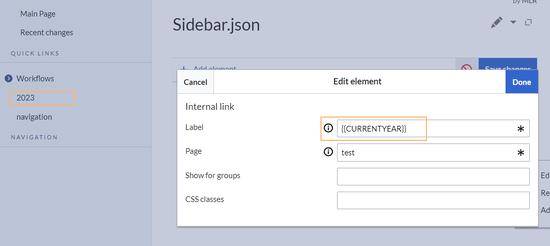
Internal Link: Simply provide a link to a wiki page with an additional link label. Both the page name and/or label can be created by using a parser function. Internal link with a variable.
External Link: Same as internal link, but you need to provide a full url to an external website.
Subpage tree: You can provide the name of a page that has one or more levels of subpages. You can set the depth 6 levels deep. This means, that if you want to show the first level of subpages, you would select a depth of 1.
Creating a subpage tree with the Enhanced MenuEditor.
You cannot use the same link label twice for different subpage trees, because the expand/collapse functionality will break.
It is not possible to change the node type (=item type) after creating it. Instead, create a new item as needed and delete the unwanted item.
Show for groups
In addition, the visibility of a menu item can be limited to certain wiki groups. Enter a comma-separated list of existing wiki groups in the "Show for groups" field.
Note: Technically savvy users can, if necessary, "convert" the group constraint into a namespace constraint. However, this "conversion" is not reflected in the GUI mode of the menu editor and should therefore be used with caution. Technically, however, it would be possible to make the change as follows:
First, create a group constraint for an element. For the element you want to show based on namespace, find the group restriction in the JSON source code:
Change the value of the "hidden" key to the following parser function, where Test is the name of the namespace in which this element should be displayed: