These configuration options are available starting at version {{Bsvs|bsvFrom=5.1.4}}.
These configuration options are available starting at version {{Bsvs|bsvFrom=5.1.4}}.
* '''Backend URL:''' Allows to change the Drawio editor to an external URL. The local default URL is <code>https://<wikidomain>/_diagram/</code><br />The vsdx-import module that allows to import Visio diagrams is not available in the standard configuration. Adminstrators have the option to enable vsdx-import by changing the backend URL to an external URL such as <code>https://embed.diagrams.net/</code> <br>
* '''Backend URL:''' Allows to change the Drawio editor to an external URL. The local default URL is <code>https://<wikidomain>/_diagram/</code>.
{{Textbox|boxtype=important|header=Important!|text=Changing the path to an external URL could result in data being sent to external services. The wiki owner is responsible for complying with data security requirements.|icon=yes}}
{{Textbox|boxtype=important|header=Important!|text=Changing the path to an external URL could result in data being sent to external services. The wiki owner is responsible for complying with data security requirements.|icon=yes}}
With the Config manager, a wiki user with sysop rights can manage wiki-wide settings in one place. In the navigation, it is located at Global navigation > Administration > Configuration. This link loads the page Special:BluespiceConfigManager.
All settings are available in any type of grouping. Changing the grouping type does not add or remove setting options. It just groups them differently. After settings are adjusted, they can be saved by clickingSave, or cancelled by clicking Reset.
Note:If a server administrator has configured a setting to no longer be writable, it will be shown as greyed-out in the config manager. You will have to talk to your server administrator about changing such a setting.
Searching for settings
A search bar is located above the list of settings. Type in a keyword such as "logo" to find the corresponding setting. The search returns settings regardless of the currently selected group.
Note:The search field has to be empty if you want to see the filter menu instead of the search.
Provider type: One of the supported providers is selected here (OpenAI or Ollama). OpenAI requires its own account, which provides an API key. To remove the AI Editing assistant icon from the Visual editor text formatting context menu, set the provider type to None.
Connection params: The API key of the provider is entered here (OpenAI) or the endpoint URL (Ollama).
Starting at BlueSpice v5.1.3+, a specific AI model can be configures in the connection params field:
An avatar image is automatically generated if the user does not upload a profile picture or if the user decides to create an avatar image in the preferences.
Generator
InstantAvatar: Generates an avatar image based on using the initials of the Real name or the Username
Identicon: Generates an avatar image based on parts of the user's IP address. IdenticonIdenticon
BlueSpiceBookshelf
Book
Show chapter pager after content: Displays previous/next book page navigation at the end of each book page. (1)
Show chapter pager before content: Displays previous/next book page navigation at the beginning of each book page. (2) Book navigationBook navigation
Use display title from book source on article: Shows the title from the book navigation as page title instead of the page name.
Note:If the page additionally contains a {{DISPLAYTITLE}} tag, the display title of the page is shown on the page and in the book navigation instead of the page label provided in the book page.
Show book chapter numbers in table of contents and headlines: The page TOC does not start with the main heading 1, but with the actual number from the book chapter (see screenshot).
Prepended chapter numbers
Conceptual considerations regarding numbering
If a chapter has more than one sublevel of chapters, there is a conflict between the numbering provided by the page table of contents and the chapter numbering of the book.
To technically resolve this issue, the numbering is only possible on the root chapter page and the leaf nodes of the chapter (the last sublevel). Chapter levels in between will show no numbering in the page table of contents and in the page headings. If you want to avoid this issue, create book chapters with only one level of sub-chapters.
If you want to override this logic, you can display the numbers for the page ToC by adding the following CSS to MediaWiki:Common.css:
Default export template for books: The default template for books is used if the export template is not explicitely set for a book export (e.g. in the book metadata).
Skinning
Show entrypoint "Books": Adds a link to the page Special:Books to the main navigation entrypoints.
BlueSpiceChecklist
Mark checklist changes as minor edit: If this setting is active, changes to a checklist (for example, checking a checkbox) in view mode are logged as minor edits. If this setting is inactive, a change to the checklist is recorded as a regular version in the page history.
BlueSpiceDiscovery
Activating/Deactivating the Entrypoint links: Depending on the BlueSpice version, various links to special pages can be activated for the main navigation. They are called entrypoint links.
MediaWiki sidebar: Activates the MediaWiki:Sidebar page, which can display a flat list of links.
Namespace main page list: The pages with the page name "Main Page" for each namespace are automatically linked in the main navigation. It is not possible to add links manually to the navigation.
Subpage tree: In the main navigation, the pages with the page name "Main Page" are automatically linked in the respective namespaces. It is not possible to add links manually to the navigation.
Enhanced MediaWiki sidebar: Activates the MediaWiki:Sidebar.json page, which can display a more dynamic and hierarchical list of links.
Elements below the page title and below the page content:
Show watermark in PDF: Shows the watermark for expired pages in PDFs.
Quality assurance
Show watermark: Shows a watermark on the wiki page itself. watermarkwatermark
BlueSpiceExtendedSearch
External file paths: External locations to scan for and index files from. These locations are entered in key/value pairs of Physical path and URL prefix.
Physical path: Storage path. For mounted drives, for example: X:\Documents
URL prefix: All files indexed from the indexed physical location are prefixed in the search results. It should be used if files are available from a web server. By default, the URL prefix is set to the same value as Physical path.
Examples for external file paths
Example file
Phys. Path
URL Prefix
Link in results list
S:\Sales\Info\glossaryy.pdf
S:\
file:///S:/
file:///S:/Sales/Info/glossary.pdf
https://sharepoint/Sales/
documents/
https://sharepoint/Sales/
documents/Sales/Info/glossary.pdf
https://intranet/showdocs
inline.aspx?path=
https://intranet/showdocsinline.aspx?
path=/Sales/Info/glossary.pdf
/var/www/bluespice/w/mounted_
share/Sales/Info/glossary.pdf
/var/www/bluespice/w/
mounted_share/
https://wiki.company.local/w/mounted_
share/Sales/Info/glossary.pdf
Add an external file pathAdd an external file path: (1) confirm the checkmark and (2) save the settings.
Automatically set language filter: The search only returns pages whose language (PageLanguage) is identical to the user language (Language). Users can set their language in their preferences. By default, the language of content pages is the same as the installation language (ContentLanguage) of the wiki. Some extensions can set the language of individual pages independently of the content language of the wiki.. (See: https://www.mediawiki.org/wiki/Manual:Language#Page_content_language). In many wikis, activating this filter has little effect.
Exclude patterns: Files at external file locations can be exluded from search based on regular expression patterns.
BlueSpiceFoundation
Skinning
Note:Since BlueSpice 4.2, the logo and favicon can also be managed via the page Special:Flexiskin together with further skin customizations.
Logo path: The logo image should be stored in the /images folder of your installation. If you store it in the /skins folder of your BlueSpice installation, it could be overwritten with an upgrade.
To upload the logo directly in the wiki:
Upload the logo on the page from the menu Global actions > File list (Special:ExtendedFilelist).
Click on the thumbnail image of the logo. This opens the logo on a separate page. logo thumbnail imagelogo thumbnail image
Copy the relative logo path from the address bar. In a typical Wiki configuration, this path starts with /w/.... . relative image pathrelative image path
Paste the logo path into the text field for the logo. logo pathlogo path
ClickSave.
Refresh the page (Strg+F5). If the uploaded logo is too large, you can add the following code snippet to the page MediaWiki:Common.css. This automatically adjusts the image to the height of the main toolbar:
.bs-logoa{background-size:contain;}
Favicon path: The favicon image should be stored in the /images folder of your installation. If you store it in the /skins folder of your BlueSpice installation, it could be overwritten with an upgrade. Favicon images have the file extension .ico.
System
Allowed file extensions: For security reasons, the types of files that users can upload are restricted. Here, you can allow additional file formats. If a file format is blacklisted in the server configuration, adding this file extension here will not allow this file type to be uploaded. See mediawiki.org/wiki/Manual:$wgFileExtensions for more info.
XML file type:The xml file type is blacklisted since MW 1.39 and has to be allowed in LocalSettings.php:
Set page categories as default in upload dialog: When a file is uploaded to the wiki via the visual editor, the categories of the paged are automatically inserted on the file page.
BlueSpiceInterwikiSearch
Enable interwiki search: Activates interwiki search in this wiki instance. Only farm instances where interwiki search is enabled in the Farm Manager are included in the search results. To prevent this wiki instance from being globally searchable, it must be disabled in the Farm Manager.
Skip over wikis that cannot be accessed or otherwise cannot return results without showing it to the user: In the search center, only those wikis are shown to the user in which he or she is logged in. If this setting is deactivated, all wikis with interwiki search that have matching results are listed, but with a warning that the results cannot be shown to the user.
No wikis are skipped for the interwiki search. Results are only shown if the user is authenticated.
BlueSpiceMatomoConnector
If the web analysis service Matomo is available, the corresponding Site ID for the wiki and the link to Matomo (base URL, e.g., https://analytics.mysite.com/) are entered here.
Show opt-out link in footer: Users can opt out of web analytics via the Analysis Services link in the wiki footer. The target page is Special:OptOut.
BlueSpicePrivacy integration: The page Special:OptOut includes a checkbox for users to opt out of the tracking service.
Prerequisite:In order to control the Matomo tracking policy using BlueSpicePrivacy, your Matomo installation requires the "AjaxOptOut" plugin module to be installed and activated. Download the plugin from https://plugins.matomo.org/AjaxOptOut and copy it to the /plugins directory of your Matomo installation.
The Matomo AuthToken must also be stored in the configuration manager of the wiki.
BlueSpicePageTemplates
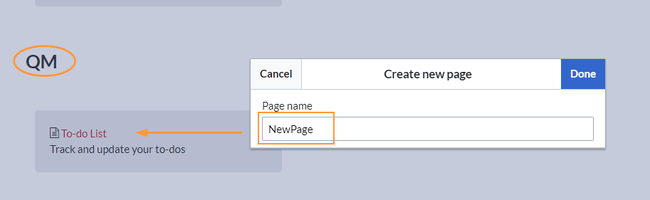
Force target namespace: The page is always created in the target namespace that is associated with the template, even if the user provided a different namespace prefix. In the screenshot below, the user wants to create the page "NewPage" and then selects a template for the QM namespace. The page is, therefore, created as "QM:NewPage" if this setting is activated. force the namespace of the template
Hide default templates: Hides the default Empty page template.
Hide template if the page is not to be created in the target namespace: Depending on the namespace prefix of the page to be created, templates that are associated with other namespaces will not be shown to the user for selection.
BlueSpicePrivacy
Enable mandatory cookies: Users have to explicitely accept the mandatory cookies to get access to the wiki. If this setting is not activated, users accept the mandatory cookies implicitly.
Enable mandatory "Privacy policy" and "Terms of service": Users have to consent to the "Privacy policy" and "Terms of service" to get and to keep access.
Accept "Privacy policy" and "Terms of service" on login: Accepting the "Privacy policy" and "Terms of service" is integrated into the login process. It is required on first login and everytime a user deactivates the consent in the user preferences.
BlueSpiceProDistributionConnector
BlueSpice subscription key: Sets the number of users as specified in the subscription contract. If this entry is missing, the number of users is limited to 25.
OAuth2 public key, OAuth private key: Required if user authentication is configured via OAuth.
Editor (External content)
Included starting with v5.2+.
Domain whitelist: List of domains whose content can be embedded in the wiki. If no domains are defined, there are no domain restrictions.
Field extension whitelist: List of file extensions that can be embedded from external content in the wiki.
BlueSpiceRSSFeeder
URL whitelist: RSS feeds need to be whitelisted here by an administrator before they can be displayed in a wiki page.
Maximum number of allowed redirects: If there are URL redirects for any of the whitelisted URLs, the number of redirects needs to be adjusted (usually to 1 or 2).
Interval for edit check (seconds): Sets the time in seconds for checking if another person is editing the page.
Show current editor: Shows or hides the name of the user who is currently editing the page.
BlueSpiceTranslationTransfer (farm)
Namespace mapping
If the namespaces differ between the source and target wikis, they must be correctly mapped to each other.
For each namespace, the source namespace, the language of the target wiki, and the target namespace are specified.
Multiple namespaces can bemapped by using the "Add" button.
Finally, the configuration settings are applied after clicking "Save" in the configuration manager. Do not foget this step!
Important!The translate link is only shown in namespaces that are listed in the field "Namespaces enabled for translation". The namespace mapping alone does not activate the translation feature for different namespaces.
Translation configuration
Namespaces enabled for translation: List of all namespaces of the translation source wiki that are included in the translation process.
BlueSpiceVisualEditorConnector
Enable VisualEditor for BlueSpice extensions: Disabling this setting removes VisualEditor from extensions such as Page Forms or BlueSpiceSocial extensions.
Upload type
Original: User permissions are verified during file upload; file name and namespace of the file can be changed; a category can be assigned and a description of the file is required
Simple: User permissions are not verified during file upload; the name and namespace of the file can be changed; a category and a description of the file can be provided
One click: User permissions are not verified during file upload; the image cannot be renamed and no category can be assigned. Only the namespace can, but does not have to be adjusted before uploading)
BlueSpiceWhoIsOnline
Time in seconds until a user is marked as offline: The system checks every x seconds if a user logged out and no longer displayed as online. This can be less frequent than the update inteval for newly logged-in users.
Update interval in seconds: The system checks every x seconds for users.
Cognitive Process Designer
Show Processes entry point: Displays a link to the process overview page in the entrypoint links of the main navigation.
ContentStabilization
Quality assurance
Include handling: If resources are embedded in a page and these resource namespace itself has approval enabled, the following settings can be selected:
Behavior
Versions that were current at the time of release
Creates an implicit draft when the resource changes after page approval. The resource will be approved together with the next page approval.
Approved versions of included pages
Only applies if the resource itself can be approved. The latest approved version is displayed on the approved wiki page.
Current versions of included pages
Always shows the most current version of a resource. An implicit draft is not generated.
Show not approved pages for following groups: If the user group has been removed from the configuration, users in this group cannot see draft versions. This also applies if they are added as reviewers in a namespace. In this case, only users with the sysop and reviewer permissions can access drafts, unless other groups are specified. These system groups can then only access drafts via the page's version history. All groups that can see page drafts anywhere in the wiki must be explicitly specified here. This setting applies to the entire wiki and cannot be restricted to namespaces.
Allow viewing of first draft version for users who can normally not see drafts: If this setting is enabled, all users with read permissions can see the first draft. If disabled, only groups from the setting "The following groups can see draft versions" can see first drafts.
Update semantic properties from approved versions only: The attribute value of the page is set from the stable version of the page and not from the draft version.
Search and navigation
Index only approved versions: Page names and contents of draft pages are not taken into account by the search. If this checkbox is activated, the search index has to be recreated.
Export
Show stabilization information in PDF export: Prints the timestamp for the last approved version below the page headings in the PDF (date of approval and date of last edit before approval). FlaggedRevs info under the heading
EnhancedUpload
Sets the defaults for the advanced image settings when uploading and embedding an image into the wiki via drag-and-drop functionality. The default settings determine the orientation, type, and size of the image. These can be adjusted after embedding via the "Advanced settings" of the image on the page.
Allow mismatched MIME types (potential security risk): If the file extension of a file does not match the actual file type, it will still be uploaded if it is listed as an allowed file extension in the wiki.
DrawioEditor
These configuration options are available starting at version v5.1.4+.
Backend URL: Allows to change the Drawio editor to an external URL. The local default URL is https://<wikidomain>/_diagram/.
Important!Changing the path to an external URL could result in data being sent to external services. The wiki owner is responsible for complying with data security requirements.
Edit Mode: The default setting for the Drawio tag included on pages. This setting can be overridden for each diagram on the wiki page.
Page view: Displays the Drawio editor in the content area of the wiki page.
Fullscreen view: When the Drawio editor is opened, the wiki interface is completely hidden.
EventBus
Eventbus sends notifications to external urls in case something happens in the wiki. For example, if a page is created, an external service could then be started and create a pdf of that page. See the extension's page on mediawiki.org.
NumberHeadings
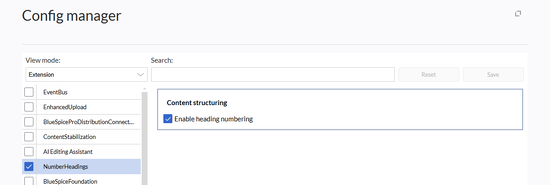
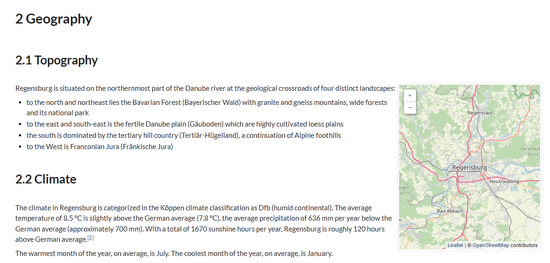
Enable heading numbering: Displays the numbering from the table of contents before the section headings on a page.Number headingsActivated heading numbers
PDFCreator
PDFCreator Konfiguration
Hide namespace prefix in PDF: Removes the namespace prefix from titles and from template parameter "title" in the PDF output.
Default export template for pages: The default template is shown when users select an export template in "Page" mode. It is also used when clicking on the PDF link for the Content DropletPDF Link .
Default cover background image
Admins can also set a default cover background image. It is applied whenever the document preface of the template contains the standard "intro"-wrapper:
The image path can be deleted. In this case, no image will be output by default.
Alternatively, an uploaded image file can be specified (without a namespace prefix), for example: industry.jpg
Default image for the cover sheet
If a book has its own bookshelf-image, this will be generated in the PDF when exporting directly from the special page "Books".
PluggableAuth
After completing a new entry, click Add and then in additionSave the page itself.
Button label: The system message key, e.g., SSOButtonLabel that lets you add the label at MediaWiki:SSOButtonLabel to be used for the button on Special:UserLogin . Note that the message must be in the instance language since it cannot be localized on wiki.
Data object (JSON): A configuration array passed to the authentication plugin. The content depends on the authentication plugin. This may be optional or required depending on the authentication plugin.