Meryam Sahin (talk | contribs) No edit summary |
Meryam Sahin (talk | contribs) No edit summary |
||
| Line 1: | Line 1: | ||
'''Drawio''' allows diagrams to be created and edited directly in a wiki page. It can be used for flowcharts, process diagrams, decision trees, infographics, and other visualizations. | |||
==Insert a diagram== | |||
'''Drawio''' | '''To create a diagram''': | ||
== | #Create or open the page where the diagram is to be inserted. | ||
'''To | #In the [[Extension/VisualEditor|VisualEditor]] toolbar, open the '''Content droplet''' menu. [[File:Manual Extension DrawioEditor 1748351104784.png|alt=Content Droplet dialog and selection of Diagram|center|thumb|400x400px|Diagram Content Droplet]] | ||
# | #Select '''diagram'''. | ||
# | #Select '''Insert'''. A dialog opens with the following options: | ||
#''' | #*'''Name''': Enter a unique name for the diagram. This name is used as the image name in the wiki. | ||
#''' | #*'''Edit mode''': Choose how the Drawio editor is displayed: | ||
# | #**'''Fullscreen view''': Opens the Drawio editor in the entire browser window. | ||
# | #**'''Page view''': Displays the Drawio editor in the page content area. | ||
# | #*'''Image description''': Enter alternative text for screen readers. The text is not displayed when the page is viewed. | ||
# | #*'''Image alignment''': Set the horizontal alignment of the diagram in the page content area. | ||
#''' | #Select '''Insert'''. The Drawio diagram is inserted into the page. [[File:drawio inspector.png|alt="Insert" dialog window for an org chart|center|thumb|259x259px|Drawio "insert"-dialog window]] | ||
# | #Save the page. <br> | ||
The | The diagram is now available on the page for editing. [[File:DrawioEditor placeholder.png|alt=Drawio placeholder and [Edit] link|center|thumb|600x600px|Drawio placeholder and [Edit] link]] | ||
[[File:DrawioEditor placeholder.png|alt=Drawio placeholder and [Edit] link|center|thumb|600x600px|Drawio placeholder and [Edit] link]] | {{Textbox|boxtype=important|header=Important:|text=Each diagram must have a unique name in the wiki. If multiple diagrams have the same name, they use the same file, and saving one diagram can overwrite another.|icon=yes}} | ||
==Edit a diagram== | |||
'''To edit a diagram''': | |||
{{Textbox|boxtype=important|header=Important | #In page view, select '''Edit''' next to the Drawio placeholder or saved diagram. | ||
#Make the required changes in the Drawio editor. | |||
== | #Select '''Save''' in the Drawio editor. | ||
#Select '''Exit''' next to '''Save''' to close the editor.<br> | |||
'''To edit | The changes are saved with the diagram. | ||
#''' | ===Change the Drawio theme=== | ||
# | The Drawio editor uses the <code>minimal</code> theme by default. <br> | ||
#''' | The following themes are supported: | ||
#''' | *<code> minimal</code> | ||
*<code>classic</code> | |||
*<code>dark</code> <br> | |||
<drawio filename="Org chart" editmode="inline" theme="classic" alignment="center" alt="Tree view of all departments with current roles" /> | To use a different theme, add the <code>theme</code> attribute to the <code><nowiki>drawio</nowiki></code> tag in source edit mode. For example: <syntaxhighlight lang="text"> <drawio filename="Org chart" editmode="inline" theme="classic" alignment="center" alt="Tree view of all departments with current roles" /> </syntaxhighlight> | ||
</syntaxhighlight> | ===Add links to shapes=== | ||
Links can be added to shapes in a Drawio diagram to open wiki pages. <br> | |||
=== | '''To add a link to a shape''': | ||
'''To add a link to a shape | #Right-click the shape and select '''Edit Link'''. | ||
#Enter the path to the target page. For an internal wiki page, include the subwiki name in the path. For example: <code>/HR/wiki/Main Page</code> or <code>/IMS/wiki/Main Page</code>. The page-selection dropdown currently has no function in BlueSpice. | |||
# | #Select '''Apply'''. | ||
#Repeat steps 1-3 for other shapes as needed. | |||
# | #Select '''Save'''. | ||
# ''' | #Select '''Exit''' to close the Drawio editor. <br> | ||
# | If the changes are not displayed after exiting the editor, refresh the page with '''F5'''. | ||
# ''' | ===Diagram format=== | ||
Newly created Drawio diagrams are saved and displayed in SVG format. <br> | |||
A '''Details''' link is generated with the diagram. It links to the versioning page for the diagram. | |||
==Import an existing diagram== | |||
Existing Visio diagrams in <code>.vsdx</code> format can be imported into the Drawio editor and edited further. <br> | |||
< | '''To import a Visio diagram''': | ||
#Insert a Drawio diagram on a wiki page. | |||
== | #In the Drawio editor, select '''File''' > '''Import From''' > '''Device'''. | ||
#Select the <code>.vsdx</code> file to import. | |||
#Edit the imported diagram as needed. | |||
==Use diagrams in tables and page layouts== | |||
Drawio diagrams in table cells or page layouts can cause problems with editing and with how the diagrams are displayed in PDF exports. <br> | |||
Add the following rules to | For better results, create the Drawio diagram on a separate wiki page and insert the resulting image into the table cell or page layout with the required dimensions. <br> | ||
If a Drawio diagram is created directly in a table cell, additional CSS on <code>MediaWiki:Common.css</code> can be used to control its size in PDF exports: | |||
<syntaxhighlight lang="css">/** ERM42590*/ | |||
.pdfcreator-type-page .drawio-table-test img { | |||
max-width: 10cm !important; | |||
}</syntaxhighlight> | |||
==Prevent automatic resizing of linked PNG diagrams== | |||
By default, Drawio PNG images are automatically resized to fit the content area. For diagrams with links on shapes, this can cause the link boundaries to no longer match the shapes because the links are based on image map coordinates. <br> | |||
Automatic resizing can be disabled with CSS. | |||
===Disable resizing for all Drawio PNG images=== | |||
Add the following rules to <code>MediaWiki:Common.css</code>: | |||
<syntaxhighlight language="css" lang="css"> | <syntaxhighlight language="css" lang="css"> | ||
/*Drawio png - do not auto-resize preview images when links are added directly to the shapes */ | /*Drawio png - do not auto-resize preview images when links are added directly to the shapes */ | ||
| Line 67: | Line 76: | ||
} | } | ||
</syntaxhighlight> | </syntaxhighlight> | ||
These rules disable automatic resizing for all Drawio preview images. | |||
===Disable resizing for selected diagrams=== | |||
To apply the styling only to selected diagrams, wrap the <code><drawio></code> tag in a container with the <code>drawio-linked</code> class in source edit mode: | |||
To apply | |||
<syntaxhighlight language="text" lang="css"> | <syntaxhighlight language="text" lang="css"> | ||
<div class="drawio-linked"> | <div class="drawio-linked"> | ||
| Line 77: | Line 85: | ||
</div> | </div> | ||
</syntaxhighlight> | </syntaxhighlight> | ||
In this case, do not add the previous rules to <code>MediaWiki:Common.css</code>. Use the following rules instead: | |||
In this case, do not add the | |||
<syntaxhighlight language="css" lang="css"> | <syntaxhighlight language="css" lang="css"> | ||
/*Drawio png - do not auto-resize | /*Drawio png - do not auto-resize preview images when links are added directly to the shapes */ | ||
.drawio-linked { | .drawio-linked { | ||
overflow-x:scroll | overflow-x: scroll; | ||
} | } | ||
.drawio-linked img { | .drawio-linked img { | ||
height: initial!important; | height: initial !important; | ||
max-width: initial!important; | max-width: initial !important; | ||
width: initial!important; | width: initial !important; | ||
} | } | ||
</syntaxhighlight> | </syntaxhighlight> | ||
==Configuration== | |||
== | Administrators can configure Drawio in the [[Extension/BlueSpiceConfigManager|'''Config Manager''']]. The following settings are available: | ||
*'''Backend URL''': Specifies the base URL of the diagrams.net (formerly draw.io) backend service used for editing diagrams. | |||
*'''Edit mode''': Specifies how the Drawio editor is displayed by default. | |||
[[ | |||
Revision as of 07:22, 13 August 2026
Drawio allows diagrams to be created and edited directly in a wiki page. It can be used for flowcharts, process diagrams, decision trees, infographics, and other visualizations.
Insert a diagram
To create a diagram:
- Create or open the page where the diagram is to be inserted.
- In the VisualEditor toolbar, open the Content droplet menu.
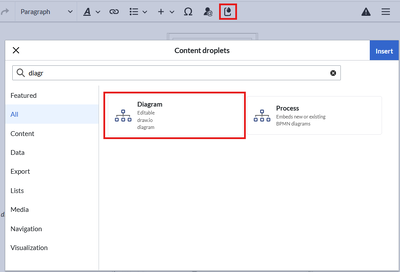
Diagram Content Droplet - Select diagram.
- Select Insert. A dialog opens with the following options:
- Name: Enter a unique name for the diagram. This name is used as the image name in the wiki.
- Edit mode: Choose how the Drawio editor is displayed:
- Fullscreen view: Opens the Drawio editor in the entire browser window.
- Page view: Displays the Drawio editor in the page content area.
- Image description: Enter alternative text for screen readers. The text is not displayed when the page is viewed.
- Image alignment: Set the horizontal alignment of the diagram in the page content area.
- Select Insert. The Drawio diagram is inserted into the page.
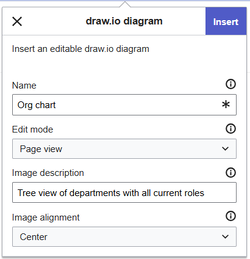
Drawio "insert"-dialog window - Save the page.


The diagram is now available on the page for editing.

Edit a diagram
To edit a diagram:
- In page view, select Edit next to the Drawio placeholder or saved diagram.
- Make the required changes in the Drawio editor.
- Select Save in the Drawio editor.
- Select Exit next to Save to close the editor.
The changes are saved with the diagram.
Change the Drawio theme
The Drawio editor uses the minimal theme by default.
The following themes are supported:
minimalclassicdark
To use a different theme, add the theme attribute to the drawio tag in source edit mode. For example:
<drawio filename="Org chart" editmode="inline" theme="classic" alignment="center" alt="Tree view of all departments with current roles" />
Add links to shapes
Links can be added to shapes in a Drawio diagram to open wiki pages.
To add a link to a shape:
- Right-click the shape and select Edit Link.
- Enter the path to the target page. For an internal wiki page, include the subwiki name in the path. For example:
/HR/wiki/Main Pageor/IMS/wiki/Main Page. The page-selection dropdown currently has no function in BlueSpice. - Select Apply.
- Repeat steps 1-3 for other shapes as needed.
- Select Save.
- Select Exit to close the Drawio editor.
If the changes are not displayed after exiting the editor, refresh the page with F5.
Diagram format
Newly created Drawio diagrams are saved and displayed in SVG format.
A Details link is generated with the diagram. It links to the versioning page for the diagram.
Import an existing diagram
Existing Visio diagrams in .vsdx format can be imported into the Drawio editor and edited further.
To import a Visio diagram:
- Insert a Drawio diagram on a wiki page.
- In the Drawio editor, select File > Import From > Device.
- Select the
.vsdxfile to import. - Edit the imported diagram as needed.
Use diagrams in tables and page layouts
Drawio diagrams in table cells or page layouts can cause problems with editing and with how the diagrams are displayed in PDF exports.
For better results, create the Drawio diagram on a separate wiki page and insert the resulting image into the table cell or page layout with the required dimensions.
If a Drawio diagram is created directly in a table cell, additional CSS on MediaWiki:Common.css can be used to control its size in PDF exports:
/** ERM42590*/
.pdfcreator-type-page .drawio-table-test img {
	max-width: 10cm !important;
}
Prevent automatic resizing of linked PNG diagrams
By default, Drawio PNG images are automatically resized to fit the content area. For diagrams with links on shapes, this can cause the link boundaries to no longer match the shapes because the links are based on image map coordinates.
Automatic resizing can be disabled with CSS.
Disable resizing for all Drawio PNG images
Add the following rules to MediaWiki:Common.css:
/*Drawio png - do not auto-resize preview images when links are added directly to the shapes */
div[id*=drawio-img-box] {
    overflow-x:scroll
}

/*Drawio png - do not auto-resize preview images when links are created as image maps from file description page */
div[id*=drawio-img-box] img {
    height: initial;
    max-width: initial;
    width: initial;
}
These rules disable automatic resizing for all Drawio preview images.
Disable resizing for selected diagrams
To apply the styling only to selected diagrams, wrap the
</syntaxhighlight>
In this case, do not add the previous rules to MediaWiki:Common.css. Use the following rules instead:
/*Drawio png - do not auto-resize preview images when links are added directly to the shapes */
.drawio-linked {
overflow-x: scroll;
}
.drawio-linked img {
height: initial !important;
max-width: initial !important;
width: initial !important;
}
Configuration
Administrators can configure Drawio in the Config Manager. The following settings are available:
- Backend URL: Specifies the base URL of the diagrams.net (formerly draw.io) backend service used for editing diagrams.
- Edit mode: Specifies how the Drawio editor is displayed by default.

