Meryam Sahin (talk | contribs) No edit summary |
Meryam Sahin (talk | contribs) No edit summary |
||
| Line 21: | Line 21: | ||
* '''Bullet points''': | * '''Bullet points''': | ||
** Review imported bullet points and adjust them if necessary. | ** Review imported bullet points and adjust them if necessary. | ||
==Import a word document== | ==Import a word document== | ||
''' | '''Import a Word document:''' | ||
#Select the '''New content''' button > '''New Word file import''' [[File:importword-menu.png|alt=Import menu|center|thumb|173x173px|Import menu]] | |||
#''' | #Select '''Select a file''' and choose the Word document, or drag the document into the upload area. [[File:importword-upoad.png|alt=Upload dialog|center|thumb|Upload dialog]] | ||
# | #Select '''Next'''. | ||
#''' | #Configure the import settings: [[File:importword-settings.png|alt=Settings|center|thumb|Settings]] | ||
# | ##'''Title:''' Enter the title of the main wiki page. If the content is split into multiple pages, the importated pages are created as subpages of this page. | ||
##'''Title:''' | ##'''Content structure:''' Select '''Split content to pages''' to create multiple wiki pages from the Word document. The heading levels in the Word document determine the page strucutre. Up to three heading levels are supported. | ||
##'''Content structure:''' | ##'''Conflicts with page title''': Select how to handle an existing page with the same title: | ||
##'''Conflicts with page title''': | ##*'''Rename:''' Creates the imported page with a modified title, such as <code>Page name (1)</code>. Avoid this option for large Word documents that are split into multiple pages. The modified page name becomes part of the path of all imported subpages. For example, if the original page is names <code> Employee handbook </code>, the imported pages are created below <code> Employee handbook (1)</code>. If the preview shows a naming conflict, select '''Cancel''' and enter a different page title, or select '''Override''' to replace the existing page. | ||
##*''Rename:'' | ##*'''Override''': Replaces the existing page with the imported content. | ||
##*''Override'': | #Select '''Next'''. | ||
#''' | # Review the preview: | ||
#''' | #* Check the names of the pages that will be created. | ||
#* Select the '''arrow''' icon to view the files imported with an individual page. | |||
#* Select the '''eye''' icon to preview the content of an indiviual page. | |||
==Create a book== | #Select '''Import'''. | ||
<br> | |||
After the import is complete, the imported pages are available as a page collection. In an English-language wiki, the page collection is stored under '''MediaWiki:Page collection'''. You can use the page collection to create a book. | |||
==Create a book from imported pages== | |||
#' | After importing the Word document, create a new book. For information about creating and managing books, see [[Books]]. <br> | ||
#''' | '''Add imported pages to a book''': | ||
#''' | #Open the book's content page. | ||
# | #Select '''Add multiple pages'''. | ||
#Select '''Page collection''' as the source. | |||
#Select the page collection created by the Word import. All pages from the page collection are added to the book in the same order as they appear in the page collection. You can use drag and drop to change the order of the pages and create a hierarchy. By default, the chapter titles display the full page path of the imported pages. To change the chapter title, select the '''Actions menu''' at the end of the corresponding page and select '''Edit'''. In the dialog, enter the chapter title in the '''Text''' field. | |||
#Save the book content page. <br> | |||
The book is now available on the '''Books overview''' page. | |||
== Troubleshoot Word import == | |||
== | |||
=== Images are not imported === | === Images are not imported === | ||
* '''Images with a background or shadow''': Only the background or shadow is imported. Remove the background or shadow from the image before importing the Word document. | |||
* Images | * '''Images are embedded as <code>.tmp</code> files: The images are embedded as <code>.tmp</code> files in the Word document. Save the images locally and replace the original images in the Word document before importing it. | ||
* Images are embedded as .tmp files in the Word document | |||
Revision as of 09:14, 10 August 2026
Word Import allows you to import Word documents and convert their content into wiki pages. This functionality is provided by the ImportOfficeFiles extension. Depending on the structure of the document, the content is imported as a single page or split into a page with subpages. Images contained in the document are imported together with the page content. Imported pages can be used as a page collection to create a Book.
Prepare a Word document for import
Before importing a Word document, review its structure to ensure that the content can be converted correctly. During the import, the following elements are converted into wiki content:
- Document title:
- The document should contain only one title. If several titles exist, error messages are displayed in the wiki at the relevant locations.
- Text:
- Most text formatting is removed. Some formatting, such as bold and italic text, is retained.
- Text boxes are converted to unformatted text.
- Headings:
- Use correct heading levels if you want the document to be converted into multiple subpages.
- Images:
- Images are imported into the wiki.
- Image names are generated using the format
Wiki-page-name_image_<consecutive number>. - Image overlays are not imported.
- Image names are inserted below the image. Consecutive numbering of the images cannot be continued in the wiki.
- Images are inserted as centered thumbnails by default.
- Tables:
- Tables are converted into wikitext tables.
- Bullet points:
- Review imported bullet points and adjust them if necessary.
Import a word document
Import a Word document:
- Select the New content button > New Word file import
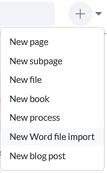
Import menu - Select Select a file and choose the Word document, or drag the document into the upload area.
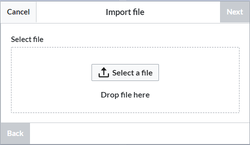
Upload dialog - Select Next.
- Configure the import settings:
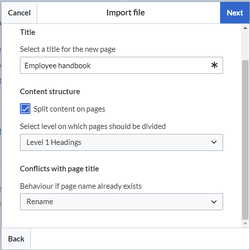
Settings - Title: Enter the title of the main wiki page. If the content is split into multiple pages, the importated pages are created as subpages of this page.
- Content structure: Select Split content to pages to create multiple wiki pages from the Word document. The heading levels in the Word document determine the page strucutre. Up to three heading levels are supported.
- Conflicts with page title: Select how to handle an existing page with the same title:
- Rename: Creates the imported page with a modified title, such as
Page name (1). Avoid this option for large Word documents that are split into multiple pages. The modified page name becomes part of the path of all imported subpages. For example, if the original page is namesEmployee handbook, the imported pages are created belowEmployee handbook (1). If the preview shows a naming conflict, select Cancel and enter a different page title, or select Override to replace the existing page. - Override: Replaces the existing page with the imported content.
- Rename: Creates the imported page with a modified title, such as
- Select Next.
- Review the preview:
- Check the names of the pages that will be created.
- Select the arrow icon to view the files imported with an individual page.
- Select the eye icon to preview the content of an indiviual page.
- Select Import.


After the import is complete, the imported pages are available as a page collection. In an English-language wiki, the page collection is stored under MediaWiki:Page collection. You can use the page collection to create a book.
Create a book from imported pages
After importing the Word document, create a new book. For information about creating and managing books, see Books.
Add imported pages to a book:
- Open the book's content page.
- Select Add multiple pages.
- Select Page collection as the source.
- Select the page collection created by the Word import. All pages from the page collection are added to the book in the same order as they appear in the page collection. You can use drag and drop to change the order of the pages and create a hierarchy. By default, the chapter titles display the full page path of the imported pages. To change the chapter title, select the Actions menu at the end of the corresponding page and select Edit. In the dialog, enter the chapter title in the Text field.
- Save the book content page.
The book is now available on the Books overview page.
Troubleshoot Word import
Images are not imported
- Images with a background or shadow: Only the background or shadow is imported. Remove the background or shadow from the image before importing the Word document.
- Images are embedded as
.tmpfiles: The images are embedded as.tmpfiles in the Word document. Save the images locally and replace the original images in the Word document before importing it.

