imported>Margit.link-rodrigue No edit summary |
imported>Margit.link-rodrigue No edit summary |
||
| Line 20: | Line 20: | ||
# '''Insert''' the template on a page using the visual editor. | # '''Insert''' the template on a page using the visual editor. | ||
# '''Enter''' the name of the department exactly as it is defined in the respective users' profiles.[[File:hw-profilegallery-templatedata.png|alt=TemplateData dialog for the template with example department |center|thumb|450x450px|Adding the department name]] | # '''Enter''' the name of the department exactly as it is [[Manual:Extension/UserProfile|defined in the respective users' profiles]].[[File:hw-profilegallery-templatedata.png|alt=TemplateData dialog for the template with example department |center|thumb|450x450px|Adding the department name]] | ||
# '''Click''' ''Apply Changes''. | # '''Click''' ''Apply Changes''. | ||
The profile pictures are now displayed. | The profile pictures are now displayed. | ||
Revision as of 14:55, 12 May 2026

The Profilegallery template displays the profile pictures of users in a department on a page. The department name must be entered on the users’ profile pages. If no profile picture exists, the user avatar is displayed.
Importing the Template
Importing the template
The import file is included in the archive file HW-Profilegallery.zip. Unpack the zip file first.
On the page Special:Import follow these steps:
- Select file and choose HW-Profilegallery.xml.
- Enter an Interwiki prefix. Since this field is required, simply add hw (for hallowelt).
- Keep the selection Import to default locations.
- Click Upload file... .
Imported pages
The XML-Import creates the following pages in your wiki:
- Template:Profilegallery
- Template:Profilegallery/format
- Template:Profilegallery/styles.css
Displaying profile pictures
- Insert the template on a page using the visual editor.
- Enter the name of the department exactly as it is defined in the respective users' profiles.
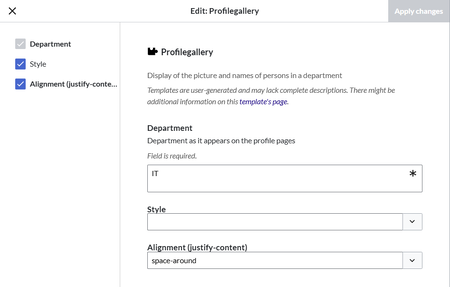
Adding the department name - Click Apply Changes.

The profile pictures are now displayed.
Note regarding deactivated users:If a department is listed on the profile page of deactivated users, these users are currently displayed in the gallery as well. If this is not desired, the department name must be removed from the user profiles.
Template parameter
| Parameter | Name | Value | Description |
|---|---|---|---|
| Department | department | text | Name of the department as shown on the profile pages of the wiki |
| Style | style | large (default), compact | |
| Alignment | align | start, space-around, space-between, center (default) | Alignment of the images in a row |

