(One intermediate revision by the same user not shown)
Line 11:
Line 11:
'''To start a collaborative editing session''':
'''To start a collaborative editing session''':
#Open the page.
#Open the page.
#Select '''Edit''' > '''Edit together'''. [[File:CP edit together.png|alt=Edit menu with the Edit together option highlighted|center|thumb|172x172px|Edit together option]]
#Select '''Edit''' > '''Edit together'''. [[File:collabpads-edit-together-menu.png|alt=Edit menu with the Edit together option highlighted|center|thumb|172x172px|Edit together option]]
#A welcome message announces the start of the collaborative editing session. To prevent this message from appearing again, select the corresponding checkbox.
#A welcome message announces the start of the collaborative editing session. To prevent this message from appearing again, select the corresponding checkbox.
#Select '''Start''' to begin the session, or select '''Cancel''' to return to another editing mode. [[File:CP welcome.png|alt=Welcome message with a checkbox and Start and Cancel buttons|center|thumb|350x350px|Starting a collaborative editing session]] <br>
#Select '''Start''' to begin the session, or select '''Cancel''' to return to another editing mode. [[File:collabpads-session-welcome.png|alt=Welcome message with a checkbox and Start and Cancel buttons|center|thumb|350x350px|Starting a collaborative editing session]] <br>
After the session starts, a banner at the top of the page indicates that a collaborative editing session is open. [[File:cp banner.png|alt=Page banner announcing that a collaborative editing session is open and providing a link to join|center|thumb|600x600px|Open collaborative editing session]]
After the session starts, a banner at the top of the page indicates that a collaborative editing session is open. [[File:collabpads-session-banner.png|alt=Page banner announcing that a collaborative editing session is open and providing a link to join|center|thumb|600x600px|Open collaborative editing session]]
{{Textbox|boxtype=note|header=New pages|text='''Edit together''' can be selected when creating a new page. If a page template is required, first select the page template in regular editing mode and save the page. Then open the page in '''Edit together''' mode.|icon=yes}}
{{Textbox|boxtype=note|header=New pages|text='''Edit together''' can be selected when creating a new page. If a page template is required, first select the page template in regular editing mode and save the page. Then open the page in '''Edit together''' mode.|icon=yes}}
==Join a collaborative editing session==
==Join a collaborative editing session==
Line 22:
Line 22:
'''Edit together''' is the only available editing mode while a collaborative editing session is running. <br>
'''Edit together''' is the only available editing mode while a collaborative editing session is running. <br>
An alert with the participant's username appears when a new participant joins the session.
An alert with the participant's username appears when a new participant joins the session.
[[File:CP user joins.png|alt=Alert message showing the username of a newly joined participant|center|thumb|700x700px|New participant joins]]
[[File:collabpads-participant-joins.png|alt=Alert message showing the username of a newly joined participant|center|thumb|700x700px|New participant joins]]
==Identify participants==
==Identify participants==
Edits made by other participants are marked with colored flags in real time. Hover over a flag to display the participant's username.
Edits made by other participants are marked with colored flags in real time. Hover over a flag to display the participant's username.
[[File:CP-flag.png|alt=Green flag marking a participant's edit|center|thumb|300x300px|Participant flag]] <br>
[[File:collabpads-participant-flag.png|alt=Green flag marking a participant's edit|center|thumb|300x300px|Participant flag]]<br>
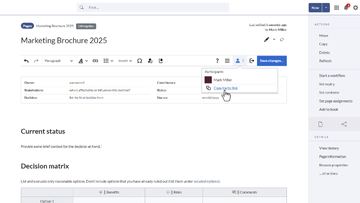
The '''Participants''' option in the editor toolbar shows the number of participants in the session. Select '''Participants''' to open the participant list. <br>
The '''Participants''' option in the editor toolbar shows the number of participants in the session. Select '''Participants''' to open the participant list. <br>
To distinguish participants more easily, select a flag color in the participant list to change the color assigned to a participant.
To distinguish participants more easily, select a flag color in the participant list to change the color assigned to a participant.
[[File:CP participants.png|alt=Participant menu with the Copy invite link option|center|thumb|250x250px|Participant list]]
[[File:collabpads-participants-menu.png|alt=Participant menu with the Copy invite link option|center|thumb|250x250px|Participant list]]
==Invite participants==
==Invite participants==
'''To invite another participant to the current collaborative editing session''':
'''To invite another participant to the current collaborative editing session''':
Line 43:
Line 43:
Selecting '''Leave''' removes the participant from the session but keeps the participant's contributions as part of the current session edits. Leaving does not create a new page revision and does not end the session. Other participants can continue editing. <br>
Selecting '''Leave''' removes the participant from the session but keeps the participant's contributions as part of the current session edits. Leaving does not create a new page revision and does not end the session. Other participants can continue editing. <br>
To remain in the session, select '''Cancel''' instead.
To remain in the session, select '''Cancel''' instead.
[[File:CP leave session.png|alt=Leave button and confirmation dialog|center|thumb|450x450px|Leaving the session]]
[[File:collabpads-leave-session.png|alt=Leave button and confirmation dialog|center|thumb|450x450px|Leaving the session]]
=== Discard pending changes ===
=== Discard pending changes ===
Pending changes can be discarded collectively by reverting the session to the last saved version. <br>
Pending changes can be discarded collectively by reverting the session to the last saved version. <br>
Line 49:
Line 49:
#Open the options menu in the editor toolbar.
#Open the options menu in the editor toolbar.
#Select '''Revert changes to the last saved version'''.
#Select '''Revert changes to the last saved version'''.
[[File:cp reset to last version.png|alt=Options menu with Revert changes to the last saved version highlighted|center|thumb|220x220px|Discarding pending changes]]
[[File:collabpads-revert-to-last-saved-version.png|alt=Options menu with Revert changes to the last saved version highlighted|center|thumb|220x220px|Discarding pending changes]]
=== Save changes ===
=== Save changes ===
To create a new page revision without leaving collaborative editing mode, select '''Save changes'''. <br>
To create a new page revision without leaving collaborative editing mode, select '''Save changes'''. <br>
Line 56:
Line 56:
==Understand sessions and page revisions==
==Understand sessions and page revisions==
A collaborative editing session follows this general process_
A collaborative editing session follows this general process_
#The first participant starts the session. Other participants can then join.
#The first participant starts the session. Other participants can then join.
#After participants make changes, a participant saves the page and leaves the session. A new page version is created in the background, and all participants are recorded as editors of the revision.
#After participants make changes, a participant saves the page and leaves the session. A new page version is created in the background, and all participants are recorded as editors of the revision.
Latest revision as of 14:49, 19 August 2026
done
Collaborative editing allows multiple users to edit the same wiki page at the same time. Changes are visible to all participants in real time. This is useful for writing meeting minutes, drafting content, brainstorming, and taking notes during live sessions.
Collaborative editing is useful when several people need to contribute to the same content at the same time.
Meeting minutes: Participants can record meeting minutes together during a meeting or other live session. This helps capture contributions from multiple participants in real time.
Drafting and brainstorming: Participants can develop new topics, outlines, and ideas together.
Knowledge transfer: Several participants can contribute their knowledge directly to the wiki instead of collecting and combining their contributions later.
Taking notes: Participants can use a collaborative editing session to collect notes before deciding which content to save to the wiki.
A welcome message announces the start of the collaborative editing session. To prevent this message from appearing again, select the corresponding checkbox.
New pagesEdit together can be selected when creating a new page. If a page template is required, first select the page template in regular editing mode and save the page. Then open the page in Edit together mode.
Join a collaborative editing session
When a collaborative editing session is open, another user can join by:
selecting the Edit button (pencil icon), or
selecting Edit togehter from the Edit menu.
Edit together is the only available editing mode while a collaborative editing session is running.
An alert with the participant's username appears when a new participant joins the session.
The Participants option in the editor toolbar shows the number of participants in the session. Select Participants to open the participant list.
To distinguish participants more easily, select a flag color in the participant list to change the color assigned to a participant.
To invite another participant to the current collaborative editing session:
Select Participants in the editor toolbar.
Select Copy invite link.
Paste the copied link into another application, such as a chat application.
The copied link opens the current collaborative editing session.
Manage a collaborative editing session
Leave without saving
A participant can leave the session at any time without saving the current changes. To leave the session:
Select Leave in the editor toolbar.
In the confirmation dialog, select Leave.
Selecting Leave removes the participant from the session but keeps the participant's contributions as part of the current session edits. Leaving does not create a new page revision and does not end the session. Other participants can continue editing.
To remain in the session, select Cancel instead.
To create a new page revision without leaving collaborative editing mode, select Save changes.
All changes made by the participants are saved in the new revision. The collaborative editing session remains open after the page is saved.
After a save, Save changes is disabled for all participants. It becomes available again when additional changes are made.
Understand sessions and page revisions
A collaborative editing session follows this general process_
The first participant starts the session. Other participants can then join.
After participants make changes, a participant saves the page and leaves the session. A new page version is created in the background, and all participants are recorded as editors of the revision.
After the page is saved, Save changes is disabled for all participants. It becomes available again after additional editing by one or more participants.
A participant can leave the session before additional changes are made.
When the next changes are saved, only the participants who are present when those changes began are recorded as editors of the new revision.
If the last participant leaves without any additional changes since the last edit, the session ends. If there are unsaved changes, the session remains open so that another participant can join.
End a collaborative editing session
A session ends in either of these situations:
The last participant saves the page.
The last participant leaves and there are no unsaved changes.
Otherwise, the session remains open.
If the last participant leaves while unsaved changes exist, the collaborative editing session remains active in the background. This protects the unsaved content and allows another participant to continue editing it.
Unsaved changes are not visible in view mode. When the page is opened for editing, the current state of the collaborative editing session is displayed. The pending changes can then be discarded or edited and saved.
Resolve an unresolved session
If the last participant leaves without saving, the collaborative editing session remains active in the background. The next user who edits the page can only open it in Edit together mode.
After the unsaved changes are saved, the page can be opened in any available editing mode again.