Created page with "{{DISPLAYTITLE:CollabPads (Edit together)}} Multiple users can edit a wiki page simultaneously. All changes are visible to all editors in real-time. This is useful to prevent edit conflicts on a page, for co-authoring instant documents such as meeting minutes, or for drafting or brainstorming sessions, to only name a few use cases. <span class="youtubelink">File:CollabPads EN thumb2.png|alt=Two side-by-side browser windows of collabpad participants|thumb|[[File:youtub..."
Collaborative editing allows multiple users to edit the same wiki page at the same time. Changes are visible to all participants in real time. This is useful for writing meeting minutes, drafting content, brainstorming, and taking notes during live sessions.
Multiple users can edit a wiki page simultaneously. All changes are visible to all editors in real-time. This is useful to prevent edit conflicts on a page, for co-authoring instant documents such as meeting minutes, or for drafting or brainstorming sessions, to only name a few use cases.
<span class="youtubelink">[[File:CollabPads EN thumb2.png|alt=Two side-by-side browser windows of collabpad participants|thumb|[[File:youtube-icon.png|alt=YouTube icon|left|22x22px]][https://youtu.be/Hs3bAK6NoFA YouTube: Edit together (04:01 min.)] |360x360px|link=https://youtu.be/Hs3bAK6NoFA]]</span>
<span class="youtubelink">[[File:CollabPads EN thumb2.png|alt=Two side-by-side browser windows of collabpad participants|thumb|[[File:youtube-icon.png|alt=YouTube icon|left|22x22px]][https://youtu.be/Hs3bAK6NoFA YouTube: Edit together (04:01 min.)] |360x360px|link=https://youtu.be/Hs3bAK6NoFA]]</span>
==Why edit together?==
==Typical use cases==
*'''Meeting minutes:'''<br />Collaborative editing is great for writing meeting minutes during a meeting or for documenting any other live sessions or meetings in real-time. If more participants contribute, it is less likely that important points are accidentally omitted from the minutes.
Collaborative editing is useful when several people need to contribute to the same content at the same time.
*'''Instant knowledge transfer:''' <br />When multiple users edit a page at the same time, it becomes very time-efficient and to transfer knowledge from the heads of multiple people into the wiki. Participants can get new ideas and inspirations when they help each other with putting their thoughts on paper.
*'''Meeting minutes:''' Participants can record meeting minutes together during a meeting or other live session. This helps capture contributions from multiple participants in real time.
* '''Creating drafts:'''<br />Drafting new topics together is helpful for avoiding writer's block and to gain momentum when thinking about the general outline or the main ideas of the topic.
*'''Drafting and brainstorming:''' Participants can develop new topics, outlines, and ideas together.
*'''Write quick notes:'''<br />Since the changes from an unsaved session are not directly visible in the wiki, making changes in Edit together mode are even useful for taking notes and only commiting them to the wiki once you find them useful enough to share with others.
*'''Knowledge transfer:''' Several participants can contribute their knowledge directly to the wiki instead of collecting and combining their contributions later.
*'''Taking notes:''' Participants can use a collaborative editing session to collect notes before deciding which content to save to the wiki.
== Start a collaborative editing session ==
<gallery widths="180" heights="180">
'''To start a collaborative editing session''':
File:CP welcome.png|alt=Welcome dialog with checkbox, start and cancel buttons|session announcement
#Open the page.
File:CP user joins.png|alt=alert message for newly joined user in a meeting minutes edit session|message when user joins
#Select '''Edit''' > '''Edit together'''. [[File:collabpads-edit-together-menu.png|alt=Edit menu with the Edit together option highlighted|center|thumb|172x172px|Edit together option]]
File:CP participants.png|alt=Participant menu with "Copy invite" link|list of participants
#A welcome message announces the start of the collaborative editing session. To prevent this message from appearing again, select the corresponding checkbox.
File:CP-flag.png|alt=Green flag next to an edit with an arrow pointing to it|flags identify the authors
#Select '''Start''' to begin the session, or select '''Cancel''' to return to another editing mode. [[File:collabpads-session-welcome.png|alt=Welcome message with a checkbox and Start and Cancel buttons|center|thumb|350x350px|Starting a collaborative editing session]] <br>
</gallery>
After the session starts, a banner at the top of the page indicates that a collaborative editing session is open. [[File:collabpads-session-banner.png|alt=Page banner announcing that a collaborative editing session is open and providing a link to join|center|thumb|600x600px|Open collaborative editing session]]
{{Textbox|boxtype=note|header=New pages|text='''Edit together''' can be selected when creating a new page. If a page template is required, first select the page template in regular editing mode and save the page. Then open the page in '''Edit together''' mode.|icon=yes}}
==Starting a session==
==Join a collaborative editing session==
To start a collaborative editing session, go to the page and select the option ''Edit together'' from the ''Edit''-menu.
When a collaborative editing session is open, another user can join by:
[[File:CP edit together.png|alt=highlighted menu option "Edit together"|center|thumb|172x172px|Edit-menu]]
*selecting the '''Edit''' button (pencil icon), or
A welcome message announces the start of the collaborative session. You can opt to ''not see this message again'' (1), and then ''start'' the session (2) or ''cancel'' (3) if you want to switch to another edit mode.
*selecting '''Edit togehter''' from the '''Edit''' menu. <br>
[[File:CP welcome.png|alt=Welcome dialog with checkbox, start and cancel buttons.|center|thumb|350x350px|Starting a collaboration session]]
'''Edit together''' is the only available editing mode while a collaborative editing session is running. <br>
The page now displays a banner that the page has an open editing session.
An alert with the participant's username appears when a new participant joins the session.
[[File:cp banner.png|alt=banner at the top of a page that announces that a collab session is open with a link to join.|center|thumb|600x600px|session banner]]
[[File:collabpads-participant-joins.png|alt=Alert message showing the username of a newly joined participant|center|thumb|700x700px|New participant joins]]
{{Textbox|boxtype=note|header=A note about new pages:|text=You can select "Edit together" mode when creating a new page. If you want to apply a page template instead of creating an empty page, select the page template in regular editing mode and then save the new page. Afterwards, open the page in "Edit together" mode.|icon=yes}}
==Identify participants==
Edits made by other participants are marked with colored flags in real time. Hover over a flag to display the participant's username.
==Joining the session==
[[File:collabpads-participant-flag.png|alt=Green flag marking a participant's edit|center|thumb|300x300px|Participant flag]]<br>
Any user who wants to join the open session can:
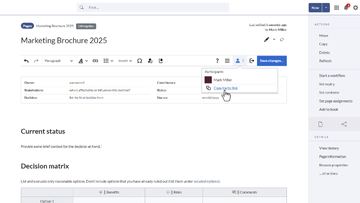
The '''Participants''' option in the editor toolbar shows the number of participants in the session. Select '''Participants''' to open the participant list. <br>
To distinguish participants more easily, select a flag color in the participant list to change the color assigned to a participant.
*click the ''edit'' button (pencil symbol) or
[[File:collabpads-participants-menu.png|alt=Participant menu with the Copy invite link option|center|thumb|250x250px|Participant list]]
*select the edit option ''Edit together'' (this is the only available option once a session is running)
==Invite participants==
'''To invite another participant to the current collaborative editing session''':
#Select '''Participants''' in the editor toolbar.
#Select '''Copy invite link'''.
An alert message with the username appears whenever a new user joins.[[File:CP user joins.png|alt=alert message for newly joined user in a meeting minutes edit session|center|thumb|700x700px|New user joins]]
#Paste the copied link into another application, such as a chat application. <br>
The copied link opens the current collaborative editing session.
Any edit that another contributor makes is marked by a colored flag in real-time. Hovering over the flag shows the username.
==Manage a collaborative editing session==
[[File:CP-flag.png|alt=Green flag next to an edit with an arrow pointing to it|center|thumb|300x300px|Contributor flag]]
===Leave without saving===
A participant can leave the session at any time without saving the current changes.<br>
The ''Participants'' menu option in the editor toolbar shows the number of users who have joined the session.
'''To leave the session''':
#Select '''Leave''' in the editor toolbar.
Clicking on the button opens the list of participants. The flag colors can be edited by clicking on any color. This can help to better distinguish each contributor.
#In the confirmation dialog, select '''Leave'''. <br>
Selecting '''Leave''' removes the participant from the session but keeps the participant's contributions as part of the current session edits. Leaving does not create a new page revision and does not end the session. Other participants can continue editing. <br>
==Inviting participants==
To remain in the session, select '''Cancel''' instead.
To send an invitation link to the current session, click the ''Participants'' menu item and click ''Copy invite link''. This adds the session link to your clipboard and you can paste it into any other application, such as a chat application.[[File:CP participants.png|alt=Participant menu with "Copy invite" link|center|thumb|250x250px|Invite link]]
[[File:collabpads-leave-session.png|alt=Leave button and confirmation dialog|center|thumb|450x450px|Leaving the session]]
=== Discard pending changes ===
==Leaving the session without saving==
Pending changes can be discarded collectively by reverting the session to the last saved version. <br>
Any user can leave the session at any time by clicking the ''Leave'' button in the editor toolbar. Clicking the Leave-button is recommended, because it displays a notification on the page for the other users.
'''To discard pending changes''':
#Open the options menu in the editor toolbar.
The dialog box has two buttons:
#Select '''Revert changes to the last saved version'''.
[[File:collabpads-revert-to-last-saved-version.png|alt=Options menu with Revert changes to the last saved version highlighted|center|thumb|220x220px|Discarding pending changes]]
*'''Leave:''' <br />The user leaves the session. The user's contributions are kept as part of the page's current session edits. Leaving the session does not create a new revision and ''does not end the session''. This means that the other participants can simply continue editing.
=== Save changes ===
*'''Cancel:''' <br />The user stays in the session.
To create a new page revision without leaving collaborative editing mode, select '''Save changes'''. <br>
All changes made by the participants are saved in the new revision. The collaborative editing session remains open after the page is saved. <br>
[[File:CP leave session.png|alt='Leave session' button and dialog field with 3 buttons.|center|thumb|450x450px|Leaving the session]]
After a save, '''Save changes''' is disabled for all participants. It becomes available again when additional changes are made.
==Understand sessions and page revisions==
===Discarding pending changes===
A collaborative editing session follows this general process_
If the pending changes should not be saved, they can be discarded collectively:
#The first participant starts the session. Other participants can then join.
Open the options menu in the editor toolbar and click Revert changes to the last saved version.
#After participants make changes, a participant saves the page and leaves the session. A new page version is created in the background, and all participants are recorded as editors of the revision.
[[File:cp reset to last version.png|alt=options menu of the editor toolbar with option to reset to the last saved version|center|thumb|220x220px|discarding open changes]]
#After the page is saved, '''Save changes''' is disabled for all participants. It becomes available again after additional editing by one or more participants.
#A participant can leave the session before additional changes are made.
==Saving a new page version==
#When the next changes are saved, only the participants who are present when those changes began are recorded as editors of the new revision.
To save changes (and thus create a new page revision) without leaving collaborative mode, you can click the Save Changes button. The changes of all participating users will be saved in this new revision.
#If the last participant leaves without any additional changes since the last edit, the session ends. If there are unsaved changes, the session remains open so that another participant can join.
===End a collaborative editing session===
After saving the page, the session stays open.
A session ends in either of these situations:
*The last participant saves the page.
===Version history===
*The last participant leaves and there are no unsaved changes. <br>
All participants who were part of the session up to this point are listed as editors in the version history. If a user leaves the session before any new changes are made, this user will not be shown in the version history of the next revision.
Otherwise, the session remains open. <br>
==Ending the session==
If the last participant leaves while unsaved changes exist, the collaborative editing session remains active in the background. This protects the unsaved content and allows another participant to continue editing it. <br>
{{Textbox|boxtype=important|header=|text=The end of a session is triggered in two cases:
Unsaved changes are not visible in view mode. When the page is opened for editing, the current state of the collaborative editing session is displayed. The pending changes can then be discarded or edited and saved.
*the last user in the session clicks ''Save''.
=== Resolve an unresolved session ===
* the last user in the session leaves AND there are no unsaved pending changes
If the last participant leaves without saving, the collaborative editing session remains active in the background. The next user who edits the page can only open it in '''Edit together''' mode. <br>
After the unsaved changes are saved, the page can be opened in any available editing mode again.
Otherwise, the session simply continues to run.|icon=yes}}
If a session is not officially ended, which is entirely possible, the session continues to run in the background, if there are any unsaved changes to the page and no more participants who can save the page. This provides a way of protecting against loss of content.
Any unsaved changes are not visible in view mode. Only when a user opens the page in edit mode, the last current status of the session is displayed. The unsaved changes can now be discarded or further edited and saved by the user.
===Unsaved changes and unresolved sessions===
If the last user in the session leaves the page without saving the page, the collaborative edit session stays active in the background. The next time a user wants to edit the page, it can only be opened in ''Edit together'' mode.
After the only user in the session saves the unsaved changes, the page can then be opened for editing in any other edit mode.
#The session gets started by the first one to enter it. Others join.
#After some collaborative editing, one random participant saves and leaves the session. In the background a new revision entry is created and '''all participants are recorded as editors'''.
#After saving, the "save" button got '''disabled for all participants'''. It only gets reactivated as some more editing happens (regardless if editing by one or all participants). Saving again will create a new revision and again '''record all participants as editors'''.
#One participant '''leaves the session before the next editing happens'''.
#Again a new revision is being created. This time only participants that have been in the session when the last editing started (after recent save) will be recorded as editors
#With the last participant leaving the session '''without any additional changes since the last edit''', the session ends. If there were changes, the session would just stay open for users to join again.
{{translation}}
Latest revision as of 14:49, 19 August 2026
done
Collaborative editing allows multiple users to edit the same wiki page at the same time. Changes are visible to all participants in real time. This is useful for writing meeting minutes, drafting content, brainstorming, and taking notes during live sessions.
Collaborative editing is useful when several people need to contribute to the same content at the same time.
Meeting minutes: Participants can record meeting minutes together during a meeting or other live session. This helps capture contributions from multiple participants in real time.
Drafting and brainstorming: Participants can develop new topics, outlines, and ideas together.
Knowledge transfer: Several participants can contribute their knowledge directly to the wiki instead of collecting and combining their contributions later.
Taking notes: Participants can use a collaborative editing session to collect notes before deciding which content to save to the wiki.
A welcome message announces the start of the collaborative editing session. To prevent this message from appearing again, select the corresponding checkbox.
New pagesEdit together can be selected when creating a new page. If a page template is required, first select the page template in regular editing mode and save the page. Then open the page in Edit together mode.
Join a collaborative editing session
When a collaborative editing session is open, another user can join by:
selecting the Edit button (pencil icon), or
selecting Edit togehter from the Edit menu.
Edit together is the only available editing mode while a collaborative editing session is running.
An alert with the participant's username appears when a new participant joins the session.
The Participants option in the editor toolbar shows the number of participants in the session. Select Participants to open the participant list.
To distinguish participants more easily, select a flag color in the participant list to change the color assigned to a participant.
To invite another participant to the current collaborative editing session:
Select Participants in the editor toolbar.
Select Copy invite link.
Paste the copied link into another application, such as a chat application.
The copied link opens the current collaborative editing session.
Manage a collaborative editing session
Leave without saving
A participant can leave the session at any time without saving the current changes. To leave the session:
Select Leave in the editor toolbar.
In the confirmation dialog, select Leave.
Selecting Leave removes the participant from the session but keeps the participant's contributions as part of the current session edits. Leaving does not create a new page revision and does not end the session. Other participants can continue editing.
To remain in the session, select Cancel instead.
To create a new page revision without leaving collaborative editing mode, select Save changes.
All changes made by the participants are saved in the new revision. The collaborative editing session remains open after the page is saved.
After a save, Save changes is disabled for all participants. It becomes available again when additional changes are made.
Understand sessions and page revisions
A collaborative editing session follows this general process_
The first participant starts the session. Other participants can then join.
After participants make changes, a participant saves the page and leaves the session. A new page version is created in the background, and all participants are recorded as editors of the revision.
After the page is saved, Save changes is disabled for all participants. It becomes available again after additional editing by one or more participants.
A participant can leave the session before additional changes are made.
When the next changes are saved, only the participants who are present when those changes began are recorded as editors of the new revision.
If the last participant leaves without any additional changes since the last edit, the session ends. If there are unsaved changes, the session remains open so that another participant can join.
End a collaborative editing session
A session ends in either of these situations:
The last participant saves the page.
The last participant leaves and there are no unsaved changes.
Otherwise, the session remains open.
If the last participant leaves while unsaved changes exist, the collaborative editing session remains active in the background. This protects the unsaved content and allows another participant to continue editing it.
Unsaved changes are not visible in view mode. When the page is opened for editing, the current state of the collaborative editing session is displayed. The pending changes can then be discarded or edited and saved.
Resolve an unresolved session
If the last participant leaves without saving, the collaborative editing session remains active in the background. The next user who edits the page can only open it in Edit together mode.
After the unsaved changes are saved, the page can be opened in any available editing mode again.