Created page with "{{DISPLAYTITLE:Word Import}} ==What is the Word import?== The extension '''ImportOfficeFiles''' allows importing a Word document which will be converted to wiki pages. *The file can be converted to a single page or to a page with subpages. *Image files are also imported. *Imported pages can be used as a page collection for creating a book. {{Textbox|boxtype=note|header=Note:|text=In the Manual:Extension/BlueSpiceConfigManager#System{{!}}Config Manager, docx must be..."
(9 intermediate revisions by the same user not shown)
Line 1:
Line 1:
{{DISPLAYTITLE:Word Import}}
<status color="green" light="true">done</status> '''in real Helpdesk'''<br>
==What is the Word import?==
'''Word Import''' allows you to import Word documents and convert their content into wiki pages. This functionality is provided by the '''ImportOfficeFiles''' extension. Depending on the structure of the document, the content is imported as a single page or split into a page with subpages. Images contained in the document are imported together with the page content. Imported pages can be used as a page collection to create a '''Book.'''
The extension '''ImportOfficeFiles''' allows importing a Word document which will be converted to wiki pages.
== Prepare a Word document for import ==
{{Textbox|boxtype=note|header=Note:|text=Word Import requires DOCX files to be enabled as an allowed upload file type in the wiki configuration. This is the default setting. Administrators can manage this setting in the [[Extension/BlueSpiceConfigManager|'''Config Manager''']].|icon=yes}}
*The file can be converted to a single page or to a page with subpages.
Before importing a Word document, review its structure to ensure that the content can be converted correctly. During the import, the following elements are converted into wiki content:
*Image files are also imported.
*Imported pages can be used as a page collection for creating a book.
{{Textbox|boxtype=note|header=Note:|text=In the [[Manual:Extension/BlueSpiceConfigManager#System{{!}}Config Manager]], docx must be configured as the allowed file extension for uploads. This is the default setting in the wiki.|icon=yes}}
== Before the import ==
Before you import a Word document, you can check the document for its complexity. During the import, the following elements are transferred to the wiki and converted into wikitext:
* '''Document title''':
* '''Document title''':
** The document should '''only contain one title'''. If several titles exist, error messages will be displayed in the wiki in the appropriate places.
** The document should contain only one title. If several titles exist, error messages are displayed in the wiki at the relevant locations.
* '''Text''':
* '''Text''':
** Text formatting is removed and converted to unformatted continuous text. Some text formatting such as bold or italics is applied.
** Most text formatting is removed. Some formatting, such as bold and italic text, is retained.
** Text boxes are converted to unformatted continuous text.
** Text boxes are converted to unformatted text.
* '''Headings''':
* '''Headings''':
** The document should contain correct heading levels if the document is to be converted into several subpages in the wiki.
** Use correct heading levels if you want the document to be converted into multiple subpages.
* '''Images''':
* '''Images''':
** Images are imported into the wiki. The images are labelled as <code>Wiki-page-name_image_<consecutive number></code> .
** Images are imported into the wiki.
** Overlays on images are not imported into the wiki.
** Image names are generated using the format <code>Wiki-page-name_image_<consecutive number></code>.
** Image overlays are not imported.
** Image names are inserted below the image. Consecutive numbering of the images cannot be continued in the wiki.
** Image names are inserted below the image. Consecutive numbering of the images cannot be continued in the wiki.
** All images are inserted centred as "thumbnail" by default.
** Images are inserted as centered thumbnails by default.
{{Textbox|boxtype=note|header=Note:|text=When uploading images, the system does not check whether the image already exists in the wiki.|icon=yes}}
{{Textbox|boxtype=note|header=Note:|text=When uploading images, the system does not check whether the same image already exists in the wiki.|icon=yes}}
* '''Tables''':
* '''Tables''':
** Tables are converted into wikitext tables.
** Tables are converted into wikitext tables.
* '''Bullet points''':
* '''Bullet points''':
** In many cases, bullet points require reworking.
** Review imported bullet points and adjust them if necessary.
==Import a Word document==
==Import a word document==
'''Import a Word document:'''
'''To import a Word document:'''
#Select the '''New content''' button > '''New Word file import''' [[File:importword-menu.png|alt=Import menu|center|thumb|173x173px|Import menu]]
#Select '''Select a file''' and choose the Word document, or drag the document into the upload area.[[File:importword-upload.png|alt=Upload dialog|center|thumb|Upload dialog]]
#'''Click''' ''New > Import Word file'' in the top menu. [[File:importword-menu.png|alt=Import menu|center|thumb|173x173px|Import menu]]
#Select '''Next'''.
#'''Click''' ''Select a file'' or drag the Word file in the drop zone.[[File:importword-upoad.png|alt=Upload dialog|center|thumb|Upload dialog]]
#Configure the import settings: [[File:importword-settings.png|alt=Settings|center|thumb|Settings]]
#'''Click''' ''Next''.
##'''Title:''' Enter the title of the main wiki page. If the content is split into multiple pages, the importated pages are created as subpages of this page.
#'''Choose''' the import settings you want.[[File:importword-settings.png|alt=Settings|center|thumb|Settings]]
##'''Content structure:''' Select '''Split content to pages''' to create multiple wiki pages from the Word document. The heading levels in the Word document determine the page strucutre. Up to three heading levels are supported.
##'''Title:'''The title of the wiki page generated by the import. When the content structure is broken up, the chapters are created as sub-pages of this main page.
##'''Conflicts with page title''': Select how to handle an existing page with the same title:
##'''Content structure:''' If the "Split content to pages" checkbox is activated, subpages are created from the heading levels of the Word document. This is possible up to 3 levels deep.
##*'''Rename:''' Creates the imported page with a modified title, such as <code>Page name (1)</code>. Avoid this option for large Word documents that are split into multiple pages. The modified page name becomes part of the path of all imported subpages. For example, if the original page is names <code>Employee handbook</code>, the imported pages are created below <code>Employee handbook (1)</code>. If the preview shows a naming conflict, select '''Cancel''' and enter a different page title, or select '''Override''' to replace the existing page.
##'''Conflicts with page title''':
##*'''Override''': Replaces the existing page with the imported content.
##*''Rename:'' The imported page is created as <p''age name>'' (1). However, this should be avoided, especially with large Word files that are divided into additional levels. It is best to enter a new page title here as an alternative. A naming conflict is displayed in the preview. In this case, if necessary, click Cancel to start the import with a new title. Or select "Override" as a conflict resolution.
#Select '''Next'''.
##*''Override'': The existing page(s) will be overwritten with a new version.
# Review the preview:
#'''Click''' ''Next''. <br />The preview shows: (1) the names of the pages that will be created (2) via the arrow icon: the files that will be imported for the individual pages (3) via the eye icon: the content of the individual wiki pages.
#* Check the names of the pages that will be created.
#'''Click''' ''<u>I</u>mport.'' After the import is complete, the created pages are displayed as a page collection in the wiki. You can view the pages from this page by clicking on the link.
#* Select the '''arrow''' icon to view the files imported with an individual page.
{{Messagebox|boxtype=note|icon=|Note text=In a wiki installed with "English" as the content language (contentlanguage), the path to the page starts with ''MediaWiki:Page collection''.|bgcolor=}}
#* Select the '''eye''' icon to preview the content of an indiviual page.
#Select '''Import'''.
==Create a book==
<br>
It is easy to create a book from the imported pages:
After the import is complete, the imported pages are available as a page collection. In an English-language wiki, the page collection is stored under '''MediaWiki:Page collection'''. You can use the page collection to create a book.
==Create a book from imported pages==
#'''Click''' the plus button.
After importing the Word document, create a new book. For information about creating and managing books, see [[Extension/BlueSpiceBookshelf|books]]. <br>
#'''Enter''' a book title and click Done.
'''Add imported pages to a book''':
#'''Click''' the Bulk Add button.
#Open the book's content page.
#'''Select''' Page Collection as the source.
#Select '''Add multiple pages'''.
#'''Select t'''he page name of the imported file.[[File:ImportOffice-pagecollection.png|alt=Select page collection|center|thumb|450x450px|Select page collection]]The pages have been added.[[File:ImportOffice-bookpages.png|alt=Add book pages and save chapter navigation|center|thumb|650x650px|Add book pages and save chapter navigation]]
#Select '''Page collection''' as the source.
#'''Choose''' ''Save and add book navigation to each wiki page'' from the '''Save''' menu.
#Select the page collection created by the Word import. All pages from the page collection are added to the book in the same order as they appear in the page collection. You can use drag and drop to change the order of the pages and create a hierarchy. By default, the chapter titles display the full page path of the imported pages. To change the chapter title, select the '''Actions menu''' at the end of the corresponding page and select '''Edit'''. In the dialog, enter the chapter title in the '''Text''' field.
#'''Click''' ''OK'' in the dialog "Change wikipage" associations. This will add the chapter navigation to each book in the page.[[File:ImportOffice-bookshelf tag.png|alt=add bookshelf tag to book pages|center|thumb|250x250px|add bookshelf tag to book pages]]
#Save the book content page. <br>
The book is now available on the Bookshelf page of your wiki.
The book is now available on the '''Books overview''' page.
== Troubleshoot ==
=== Change the display title of your book chapters ===
Since the display titles of the book pages show the path of the imported subpages, it makes sense to edit the display titles afterwards. To do this, open the book page in source edit mode and remove the path with the trailing "/".
[[File:ImportOffice-booksource1.png|alt=Changing the chapter titles|center|thumb|650x650px|Changing the chapter titles]]
If the book has a lot of pages, you can copy the source code into an editor like Notepad++ and replace the following text:<div>
|Employee handbook/
</div>Replace the text and t'''ake care that the vertical pipe''' after the actual page name and before the page title '''is the replacement text'''.<div>
|
</div>Copy the source code back to the wiki and save the book page.
[[File:ImportOffice-updatedbooktitles.png|alt=Updated book titles|center|thumb|650x650px|Updated book titles]]
== Sources of error ==
=== Images are not imported ===
=== Images are not imported ===
* '''Images with a background or shadow''': Only the background or shadow is imported. Remove the background or shadow from the image before importing the Word document.
* Images have a background/shadow and only the background/shadow is imported: These images are not supported. Solution: Remove the background/shadow before the import.
* '''Images are embedded as <code>.tmp</code> files''': The images are embedded as <code>.tmp</code> files in the Word document. Save the images locally and replace the original images in the Word document before importing it.
* Images are embedded as .tmp files in the Word document for an unknown reason. Solution: Before importing, save the images from the Word document locally and then use them to replace the original image in the Word document.
donein real Helpdesk Word Import allows you to import Word documents and convert their content into wiki pages. This functionality is provided by the ImportOfficeFiles extension. Depending on the structure of the document, the content is imported as a single page or split into a page with subpages. Images contained in the document are imported together with the page content. Imported pages can be used as a page collection to create a Book.
Note:Word Import requires DOCX files to be enabled as an allowed upload file type in the wiki configuration. This is the default setting. Administrators can manage this setting in the Config Manager.
Before importing a Word document, review its structure to ensure that the content can be converted correctly. During the import, the following elements are converted into wiki content:
Document title:
The document should contain only one title. If several titles exist, error messages are displayed in the wiki at the relevant locations.
Text:
Most text formatting is removed. Some formatting, such as bold and italic text, is retained.
Text boxes are converted to unformatted text.
Headings:
Use correct heading levels if you want the document to be converted into multiple subpages.
Images:
Images are imported into the wiki.
Image names are generated using the format Wiki-page-name_image_<consecutive number>.
Image overlays are not imported.
Image names are inserted below the image. Consecutive numbering of the images cannot be continued in the wiki.
Images are inserted as centered thumbnails by default.
Note:When uploading images, the system does not check whether the same image already exists in the wiki.
Tables:
Tables are converted into wikitext tables.
Bullet points:
Review imported bullet points and adjust them if necessary.
Import a Word document
Import a Word document:
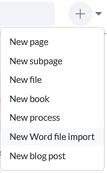
Select the New content button > New Word file importImport menu
Select Select a file and choose the Word document, or drag the document into the upload area.Upload dialogUpload dialog
Select Next.
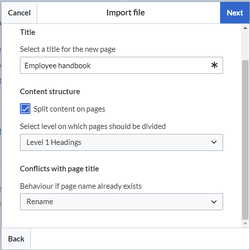
Configure the import settings: Settings
Title: Enter the title of the main wiki page. If the content is split into multiple pages, the importated pages are created as subpages of this page.
Content structure: Select Split content to pages to create multiple wiki pages from the Word document. The heading levels in the Word document determine the page strucutre. Up to three heading levels are supported.
Conflicts with page title: Select how to handle an existing page with the same title:
Rename: Creates the imported page with a modified title, such as Page name (1). Avoid this option for large Word documents that are split into multiple pages. The modified page name becomes part of the path of all imported subpages. For example, if the original page is names Employee handbook, the imported pages are created below Employee handbook (1). If the preview shows a naming conflict, select Cancel and enter a different page title, or select Override to replace the existing page.
Override: Replaces the existing page with the imported content.
Select Next.
Review the preview:
Check the names of the pages that will be created.
Select the arrow icon to view the files imported with an individual page.
Select the eye icon to preview the content of an indiviual page.
Select Import.
After the import is complete, the imported pages are available as a page collection. In an English-language wiki, the page collection is stored under MediaWiki:Page collection. You can use the page collection to create a book.
Create a book from imported pages
After importing the Word document, create a new book. For information about creating and managing books, see books. Add imported pages to a book:
Open the book's content page.
Select Add multiple pages.
Select Page collection as the source.
Select the page collection created by the Word import. All pages from the page collection are added to the book in the same order as they appear in the page collection. You can use drag and drop to change the order of the pages and create a hierarchy. By default, the chapter titles display the full page path of the imported pages. To change the chapter title, select the Actions menu at the end of the corresponding page and select Edit. In the dialog, enter the chapter title in the Text field.
Save the book content page.
The book is now available on the Books overview page.
Troubleshoot
Images are not imported
Images with a background or shadow: Only the background or shadow is imported. Remove the background or shadow from the image before importing the Word document.
Images are embedded as .tmp files: The images are embedded as .tmp files in the Word document. Save the images locally and replace the original images in the Word document before importing it.